
Key Takeaways
- Collapsing margins in CSS occur when the vertical margins of two elements touch, resulting in only the larger margin value being honored. This applies to adjacent and nested elements.
- Certain elements do not have their margins collapsed, including floated elements, absolutely positioned elements, inline-block elements, elements with overflow set to anything other than visible, cleared elements, and the root element.
- Collapsing margins also occur between parent and child elements whose margins touch, meaning no padding, borders, or content exist between the adjacent margins. Only the largest margin applies.
- To prevent margin collapsing, padding or borders can be added to each element. Alternatively, the overflow property can be used with a value other than visible.
Let’s explore exactly what the consequences of collapsing margins are, and how they will affect elements on the page.
The W3C specification defines collapsing margins as follows:
“In this specification, the expression collapsing margins means that adjoining margins (no non-empty content, padding, or border areas, or clearance separate them) of two or more boxes (which may be next to one another or nested) combine to form a single margin.”
In simple terms, this definition indicates that when the vertical margins of two elements are touching, only the margin of the element with the largest margin value will be honored, while the margin of the element with the smaller margin value will be collapsed to zero. In the case where one element has a negative margin, the margin values are added together to determine the final value. If both are negative, the greater negative value is used. This definition applies to adjacent elements and nested elements.
There are other situations where elements do not have their margins collapsed:
- floated elements
- absolutely positioned elements
- inline-block elements
- elements with overflow set to anything other than visible (They do not collapse margins with their children.)
- cleared elements (They do not collapse their top margins with their parent block’s bottom margin.)
- the root element
This is a difficult concept to grasp, so let’s dive into some examples.
Collapsing Margins Between Adjacent Elements
Margins collapse between adjacent elements. In simple terms, this means that for adjacent vertical block-level elements in the normal document flow, only the margin of the element with the largest margin value will be honored, while the margin of the element with the smaller margin value will be collapsed to zero. If, for example, one element has a 25px bottom margin and the element immediately underneath it has a 20px top margin, only the 25px bottom margin will be enforced, and the elements will remain at a distance of 25px from each other. They will not be 45px (25+20) apart, as might be expected.
This behavior is best demonstrated with a short example. Consider the following code:
h1 {
  margin: 0 0 25px 0;
  background: #cfc;
}
p {
  margin: 20px 0 0 0;
  background: #cf9;
}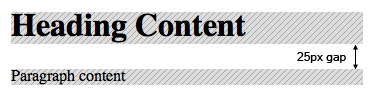
As you’ll see from Figure 1, the gap between the elements is only 25px, and the smaller margin has collapsed to zero. If in the above example the elements had equal margins (say, 20 pixels each), the distance between them would be only 20px.
There is one situation that will cause a slight deviation from the behavior of collapsing margins: should one of the elements have a negative top or bottom margin, the positive and negative margins will be added together to reach the final, true margin. Here’s an example style sheet that demonstrates the concept:
h1 {
  margin: 0 0 25px 0;
  background: #cfc;
}
p {
  margin: -20px 0 0 0;
  background: #cf9;
}
The bottom margin of the h1 element is a positive number (25px), and the top margin of the p element is a negative number (-20px). In this situation, the two numbers are added together to calculate the final margin: 25px + (-20px) = 5px.
If the result of this calculation is a negative number, this value will have the effect of one element overlapping the other. You could say that the negative margin pulls the element in the opposite direction to that of a positive margin. See margin for more details about negative margins.
Collapsing Margins Between Parent and Child Elements
So far, we’ve only addressed the collapsing effect on adjacent elements, but the same process holds true for parents and children whose margins touch. By “touch,” we mean the places at which no padding, borders, or content exist between the adjacent margins. In the following example, a parent element has a child element on which a top margin is set:
h1 {
  margin: 0;
  background: #cff;
}
div {
  margin: 40px 0 25px 0;
  background: #cfc;
}
p {
  margin: 20px 0 0 0;
  background: #cf9;
}
In the style sheet above, you can see that a top margin value is declared for the p element, and in the code excerpt below, you can see that the p element is a child of the div element:
<h1>Heading Content</h1>
<div>
  <p>Paragraph content</p>
</div>
The result of this code is illustrated in Figure 2.
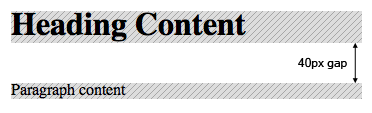
You may have expected that the paragraph would be located 60px from the heading, since the div element has a margin-top of 40px and there is a further 20px margin-top on the p element. You may also have expected that 20px of the background color of the div element would show above the paragraph. This does not happen because, as you can see in Figure 2, the margins collapse together to form one margin. Only the largest margin applies (as in the case of adjoining blocks), as we’ve already seen.
In fact we would get the same result if our div element had no top margin and the p element had a 40px margin-top. The 40px margin-top on the p element effectively becomes the top margin of the div element, and pushes the div down the page by 40px, leaving the p element nesting snugly at the top. No background would be visible on the div element above the paragraph.
In order for the top margins of both elements to be displayed, and for the background of the div element to be revealed above the p element, there would need to be a border or padding that would stop the margins collapsing. If we simply add a top border to the div element, we can achieve the effect we were originally looking for:
h1 {
  margin: 0;
  background: #cff;
}
div {
  margin: 40px 0 25px 0;
  background: #cfc;
  border-top: 1px solid #000;
}
p {
  margin: 20px 0 0 0;
  background: #cf9;
}
In Figure 3, we can see that the div element is still 40px away from the heading, but the paragraph has been pushed a further 20px down the page, thus revealing 20px of the background of the div element (through the presence of the border).
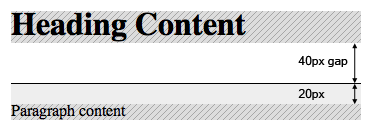
If we didn’t want a visible top border showing in the design, a 1px top padding on the div element would have achieved the same effect. Note that the border or padding should be applied to the parent div because a border on the paragraph would not stop the margins from collapsing, since the paragraph’s margin is outside of the border.
The example above deals with a single parent and single child that have touching margins, but the same approach would apply if there were several children (that is, nested elements) that all had adjacent vertical margins: it would still mean that all the margins would collapse into one single margin. Although the examples above mentioned top margins, the same effect is true for bottom margins, as can be seen below.
In the following contrived example, we’ve nested four div elements, all of which have a 10px margin applied. Each div has a different background color, so the effects of the margin collapse will be clearly visible:
.box {
  margin: 10px;
}
.a {
  background: #777;
}
.b {
  background: #999;
}
.c {
  background: #bbb;
}
.d {
  background: #ddd;
}
.e {
  background: #fff;
}
The result of the above CSS is shown in Figure 4.
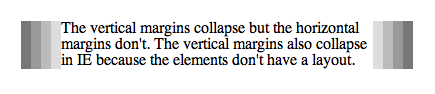
As you can see in this example, the effect of our CSS is quite dramatic: all the vertical margins have collapsed to form a single, 10px margin. Unlike the horizontal margin example, where all the margins were visible, the vertical margins show no such colors at all, thanks to the background-color that has been applied to each element. The whole block will be positioned 10px from other in-flow elements on the page, but each nested block will collapse its margins into a single margin.
As discussed earlier, the simplest way to stop the margin collapse from occurring is to add padding or borders to each element. If we wanted 10px margins on each element we could simply use a 9px margin and 1px of padding to get the result we wanted:
.box {
  margin: 9px;
  padding: 1px;
}
The result of that small change will “un-collapse” the vertical margins, as you can see in Figure 5.
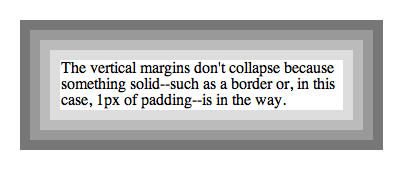
Again, it’s important to consider the effects that layout in Internet Explorer would have in the above demonstrations. Should the elements in the first example (Figure 4) have a layout in IE, the result would be exactly as shown in Figure 5. It’s also worth noting that in browsers other than IE, the same effect would occur if the overflow property was added with a value other than visible.
Wrapping It Up
Although the margin collapse behavior is at first a little unintuitive, it does make life easier in the case of multiple nested elements, where the behavior is often desirable. As shown above, easy methods are available to help you stop the collapse if required.
Frequently Asked Questions about Collapsing Margins in CSS
What is the concept of margin collapsing in CSS?
Margin collapsing is a unique feature in CSS that occurs when the top and bottom margins of two elements come into contact with each other. Instead of adding up, these margins combine to form a single margin that is equal to the larger of the two, effectively “collapsing” into one. This behavior is different from how horizontal margins work, which always add up.
When does margin collapsing occur?
Margin collapsing occurs in three main scenarios: between sibling elements, between parent and first/last child elements, and between empty blocks. It’s important to note that margin collapsing only happens with vertical margins (top and bottom), not horizontal margins (left and right).
How can I prevent margin collapsing?
There are several ways to prevent margin collapsing. One common method is to use padding or borders, as they create a separation between the margins, preventing them from collapsing. Another method is to use the overflow property, which can prevent margin collapsing when set to anything other than visible.
Does margin collapsing occur in flexbox and grid layouts?
No, margin collapsing does not occur in flexbox and grid layouts. This is one of the key differences between these layout models and the traditional block layout model.
How does margin collapsing affect the layout of my webpage?
Margin collapsing can significantly affect the spacing between your elements. It can lead to unexpected results if not properly understood and accounted for, especially when designing complex layouts.
What is the difference between positive and negative margin collapsing?
When both margins are positive, the larger one prevails. When one margin is negative, it subtracts from the positive margin. If both are negative, the larger negative margin prevails.
How does margin collapsing work with nested elements?
For nested elements, if there’s nothing separating the margin of the parent and the margin of the child (like padding or a border), the larger margin prevails and the smaller one collapses into it.
Does margin collapsing occur with inline-block elements?
No, margin collapsing does not occur with inline-block elements. This is another key difference between block elements and inline-block elements.
How does the clear property affect margin collapsing?
The clear property can affect margin collapsing. If an element is cleared, it will move below the float, and its top margin will not collapse with the float’s margin.
How does margin collapsing work with absolute positioning?
Absolutely positioned elements do not participate in margin collapsing. Their margins do not collapse with any other margins.
Adam is SitePoint's head of newsletters, who mainly writes Versioning, a daily newsletter covering everything new and interesting in the world of web development. He has a beard and will talk to you about beer and Star Wars, if you let him.